


SMSCountry offers six SMS plugins – Excel, Magento, WooCommerce, Prestashop, X-cart, and nopCommerce – for automated order alerts, OTPs, and SMS marketing.
Are you looking to make your website more powerful?
Do you want to add the power of SMS to it?
SMS plugins help you connect with your audience and help drive conversions with SMS from any platform.
With SMSCountry SMS plugins, you can make your website go from zero to a hero in just a few clicks.
Here are six of the best SMS plugins to make the magic happen.
Using SMSCountry plugins makes sending SMS from any tool you work with easy, fast and within your budget. Get a quote today!
No credit card required
What is the SMSCountry Excel to SMS plugin?
SMSCountry’s Excel to SMS plugin is a free tool for sending bulk, personalised SMS and OTPs directly from Excel or Google Sheets – no login required.
The bulk SMS Excel plugin enables you to save time when sending SMS. Among other benefits:
- Collect customer feedback via 2-way SMS.
- Send promotional SMSes to your customers using the data in your Excel sheet.
- Trigger notifications and alerts to your contacts directly from Excel.
- Send transactional SMSes to your customers in seconds. Using the data on Excel without any logins.
Apart from the perks, you might wonder how the SMS plugin operates. Below is a list of the features of the SMSCountry Excel plugin.
- This plugin is part of the new tech age. You don’t need to log in or use any kind of credentials to use it.
- You can design SMSes using data in your Excel cells and draft personalised SMSes in just a few minutes.
- You don’t have to worry about scheduling anymore. With SMSCountry’s extensive scheduling tech, you can plan ahead.
- This plugin is highly economical for your business. You can directly send bulk SMS using the Excel plugin without human intervention. It saves money and campaigns.
This bulk SMS Excel plugin eases your burden and lightens your workload. Plus, it is free to use..
How do you get started with the Excel to SMS plugin?
Here’s a step-by-step tutorial on how to set up and start using the SMSCountry Excel to SMS plugin.
Step one: First, sign up or log in to the SMSCountry home page to use the excel plugin to send sms.

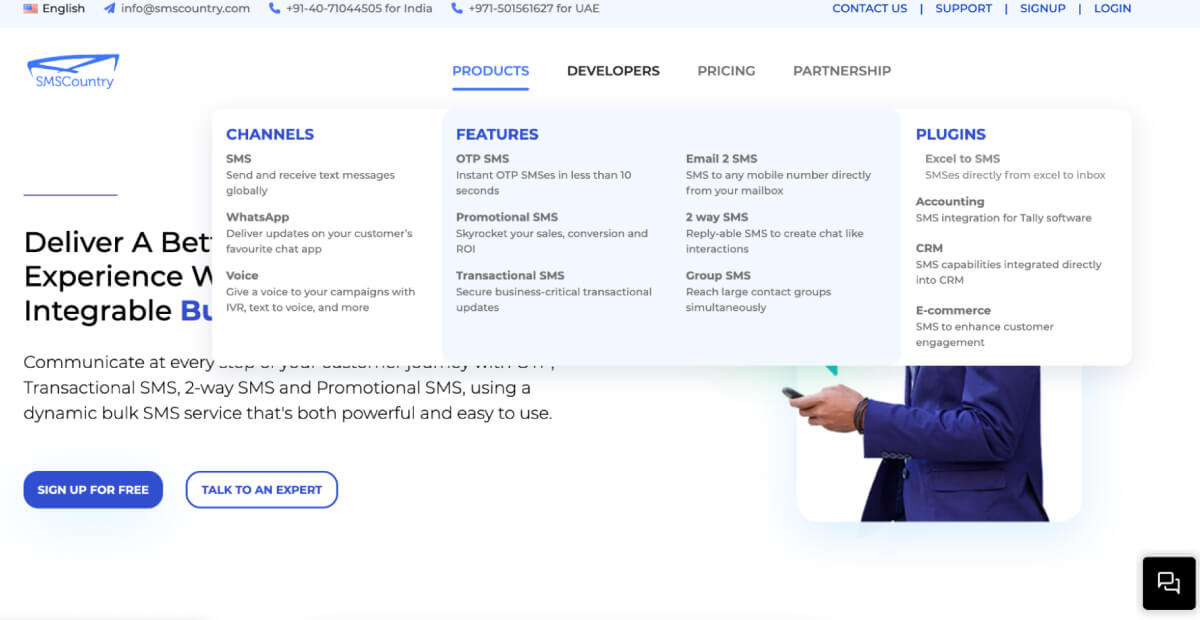
Step two: You would then need to click on the products tab and find Excel to SMS listed under the tab.
Step three: On this webpage, you’ll find two options: talk to an expert or sign up.
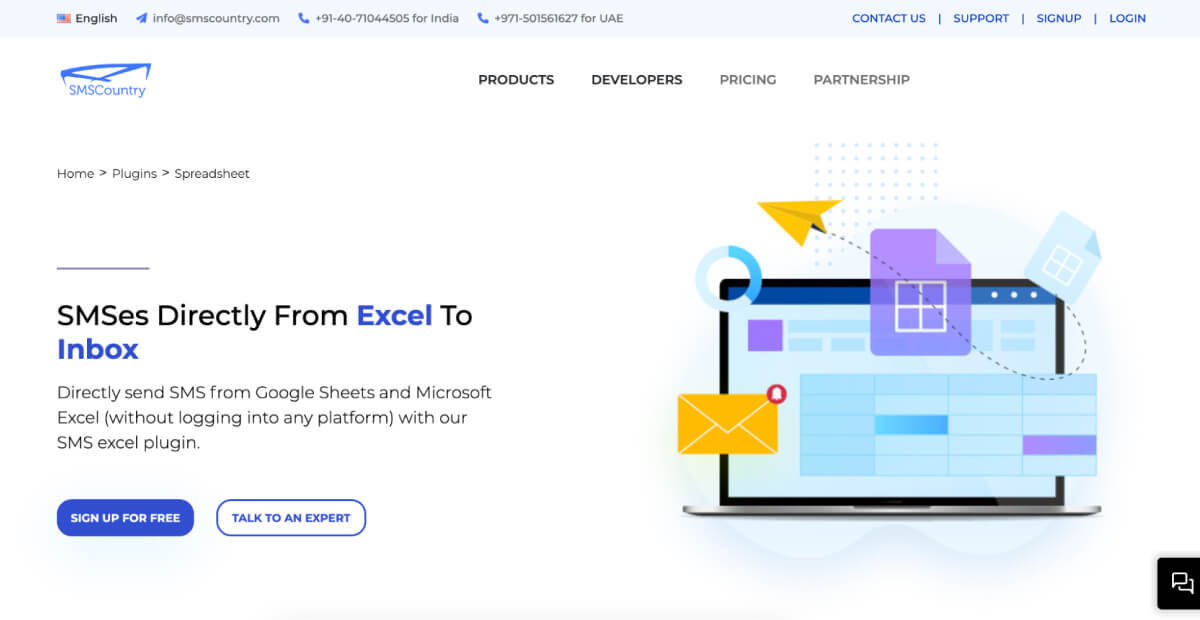
Step four: You could choose to do either. You can talk to our expert and understand more about the SMS plugin. Otherwise, you could directly sign up and receive the file from our team. They would integrate it into your website.
To learn more about the Excel to SMS plugin and its functionality, we know what you need.
Follow along and watch this video to get a better understanding.
How about the SMS plugin for Magento by SMSCountry? Don’t know yet? Keep reading.
What does the SMSCountry Magento SMS plugin do?
SMSCountry’s Magento SMS plugin sends automated order, payment, and delivery status updates to customers and vendors in real time from any Magento store

With the Magento SMS plugin, you get these benefits:
- Send sign-up SMS notifications to your customers.
- Update your customers on their order status, delivery and payment status.
- Trigger an SMS to your finance teams for payment-related updates.
The Magento SMS extension provides many customer-centric and merchant-centric features. It gives you the best of both worlds.
Here are some features of the Magento SMS plugin that can keep you on top of your game:
- You can send SMS alerts to DND and NON-DND numbers.
- You can trigger language-based SMS depending on your customer’s location and preference.
- You can register your message templates for free.
- You can allocate the sender name and sender ID as per customer intervention.
- You can access detailed analytics and delivery status in your account dashboard.
It is quite simple and easy to get started with the Magento SMS by SMSCountry. Here’s how you do it.
Step 1: Sign up if you are a new customer or log in If you are an existing customer on SMSCountry.com
Step 2: Once you sign up, you will need to get in touch with your engagement manager at SMSCountry. You will have to ask for the particular plugin. In this case, Magento by SMSCountry
Step 3: You get the installation file and the required documentation. With this, you can do it yourself. In any case, if you can’t, we can help assist you in the process.
Step 4: After that, you can go to your magneto-powered website.
Step 5: You’ll need to log into the admin panel on your website.
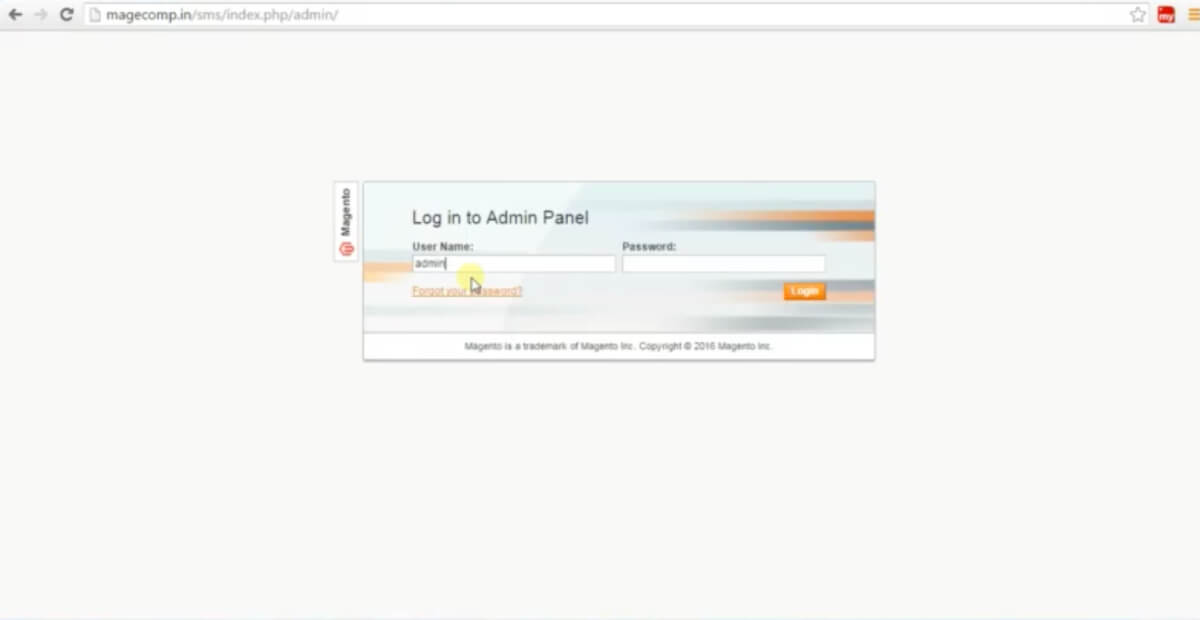
Step 6: Once you type your login credentials, you’ll get directed to your website’s dashboard.
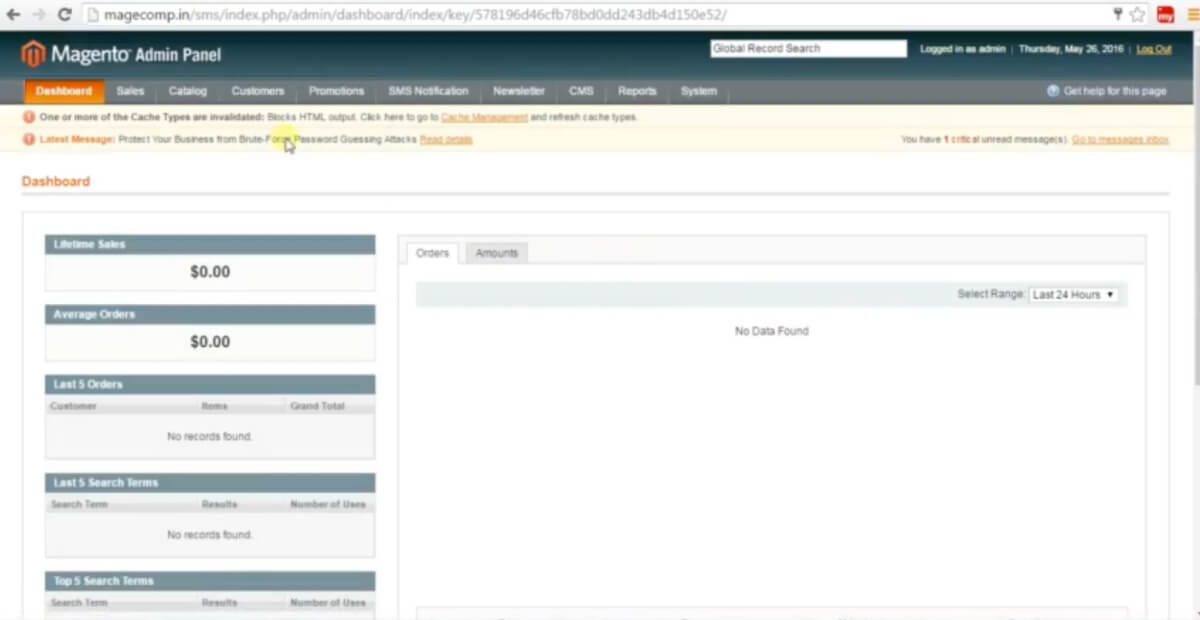
Step 7: You need to click on the option ‘woocommerce sms notification plugin’. And then click on ‘SMS configuration.’
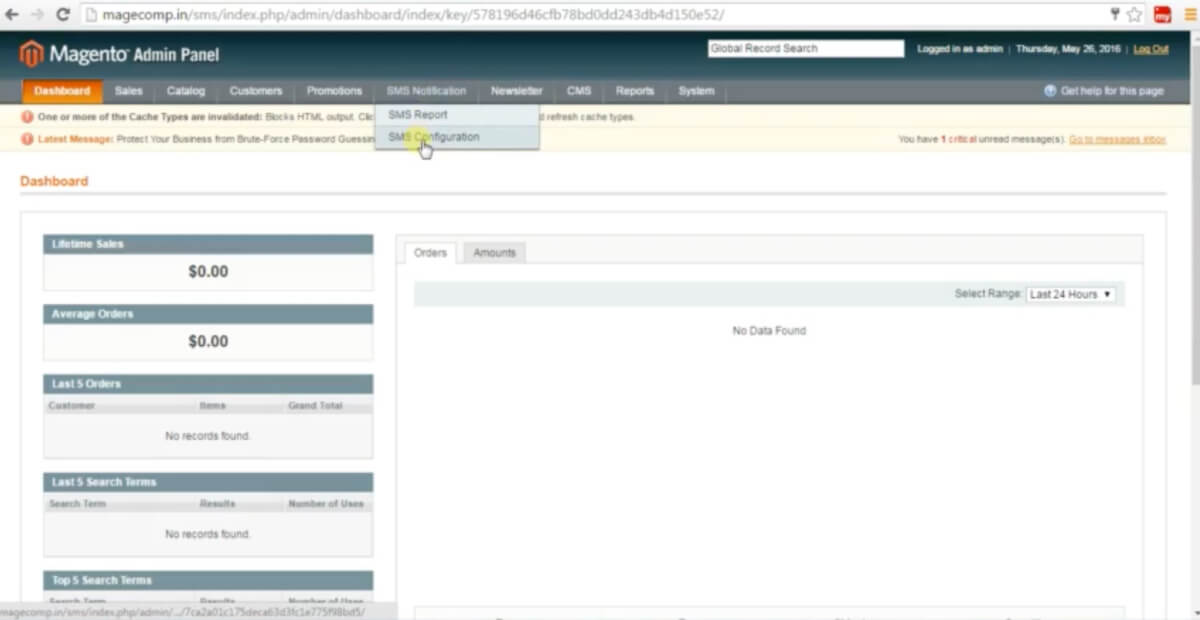
Step 8: You will redirect to a webpage with SMSCountry’s plugin installed. From there, you can configure your SMS activity.
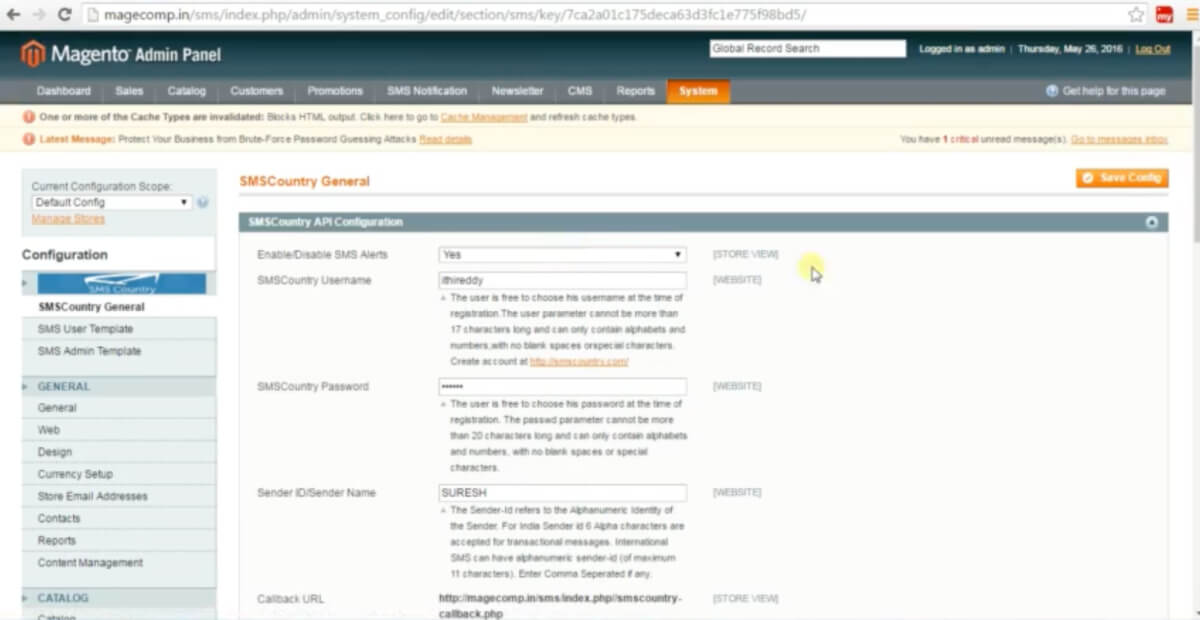
Step 9: This webpage allows you to work with your SMS-related settings.
Using the SMSCountry SMS plugin for your Magento website, you can configure payment and shipment-related settings. You can edit and check your templates, contacts, reports, and sender ID and even send test SMSes.
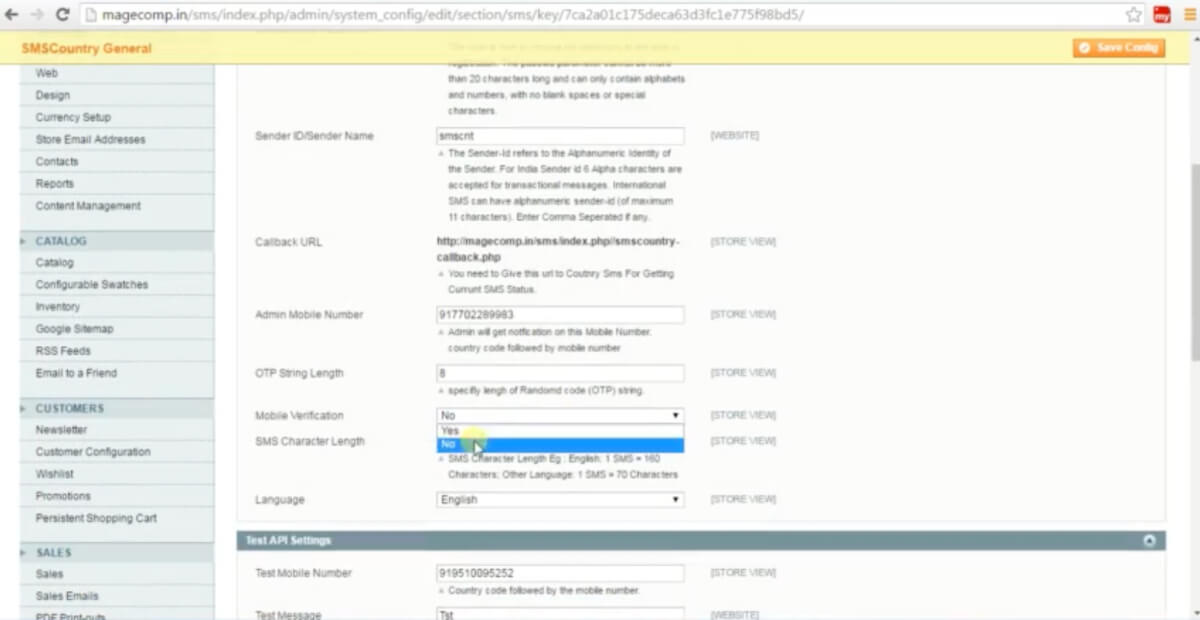
There’s more you can do with the SMSCountry Magento plugin, which you can learn about here.
It also includes an instructional video on everything.
When you use SMSCountry plugins, you get a perfect combination of speed at the best price. Get started today!

What is the SMSCountry WooCommerce SMS plugin used for?
The SMSCountry WooCommerce SMS plugin automatically sends order, shipping, and payment SMS alerts to customers, and is used by stores among WooCommerce’s 600,000+ merchants.
Here are some features of the WooCommerce SMS plugin to get you started:
- You can send SMS alerts to DND and NON-DND numbers.
- You can trigger language-based SMS depending on your customer’s location and preference.
- You can register your message templates for free.
- You can allocate the sender name and ID per customer intervention.
- You can access detailed analytics and delivery status in your account dashboard.
- You can use WooCommerce SMS plugins for sending order notifications to your customers.
Installing and activating this SMS plugin on your website is simple and easy.
This is how to get started with the free SMS plugin for woocommerce.
Step 1: Sign up as a new customer or log in. If you are an existing customer on SMSCountry.com
Step 2: Once you sign up, you will need to get in touch with your engagement manager at SMSCountry. You will have to ask for the particular plugin. In this case, WooCommerce by SMSCountry.
Step 3: SMSCountry will provide you with the installation file and required documentation. If you’re unable to do it yourself, we can help you.
Step 4: Go to your WooCommerce-powered website.
Step 5: Log into the admin panel on your website.
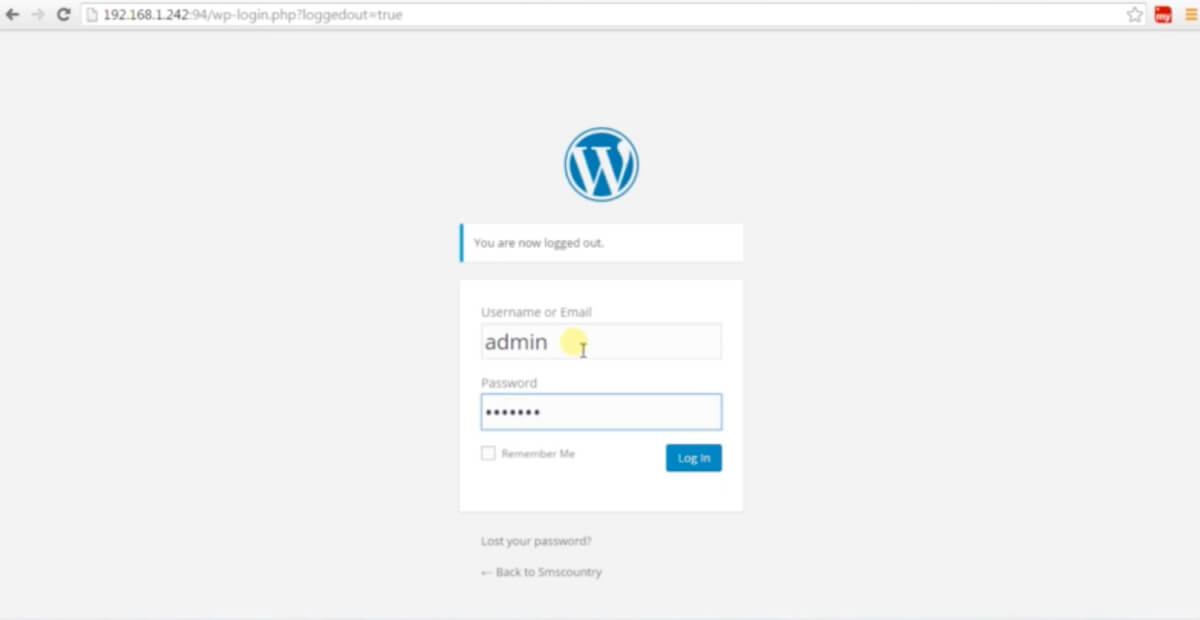
Step 6: Once you type your login credentials, you’ll get directed to your website’s dashboards.
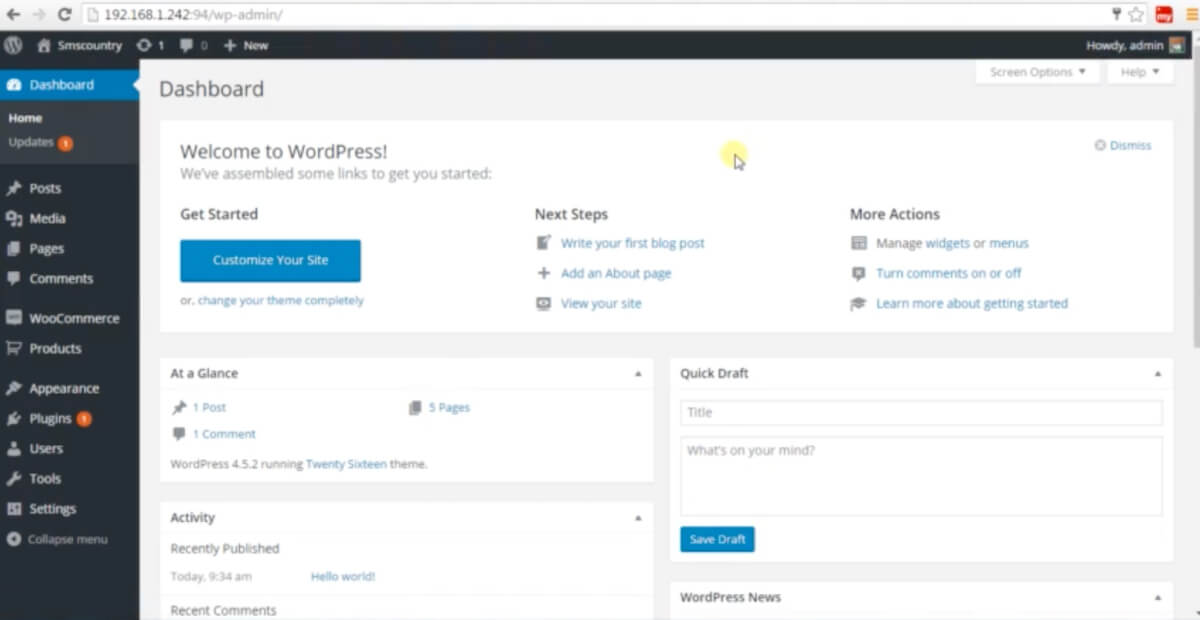
Step 7: Click the WooCommerce option on the left-side menu. And then click the SMSCountry option.

Step 8: This will take you to the SMSCountry plugin page. Reconfigure your username to match your SMSCountry login credentials, and you’re done!
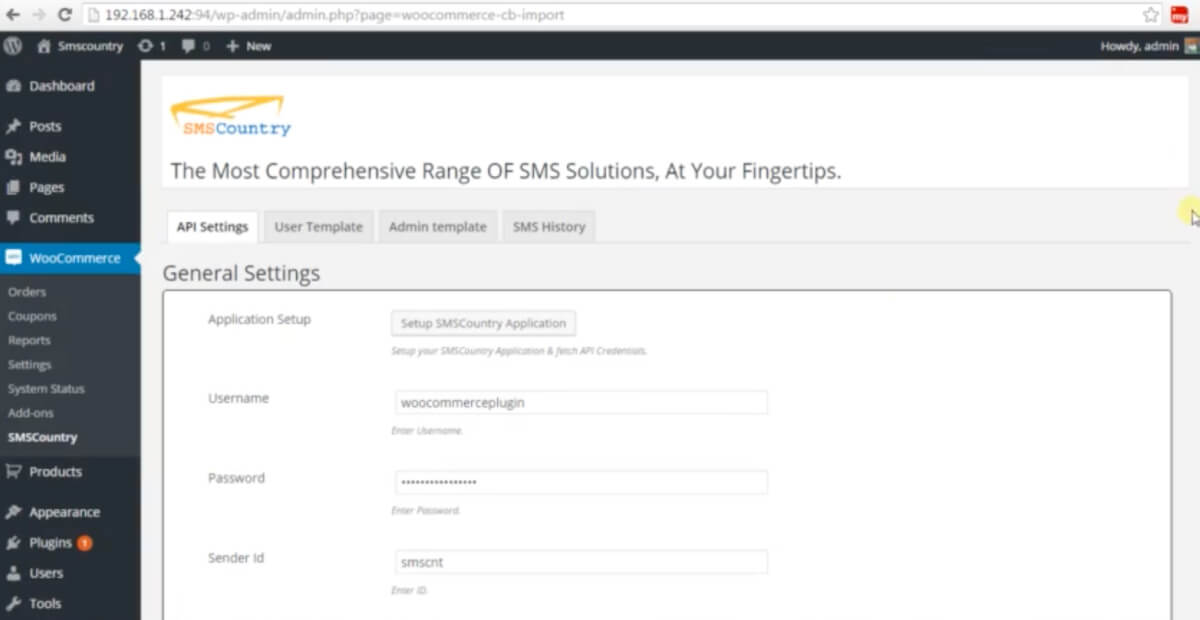
Step 9: Configure and work with your SMS settings on this webpage. The SMSCountry WooCommerce plugin allows you to do a lot with your SMS.
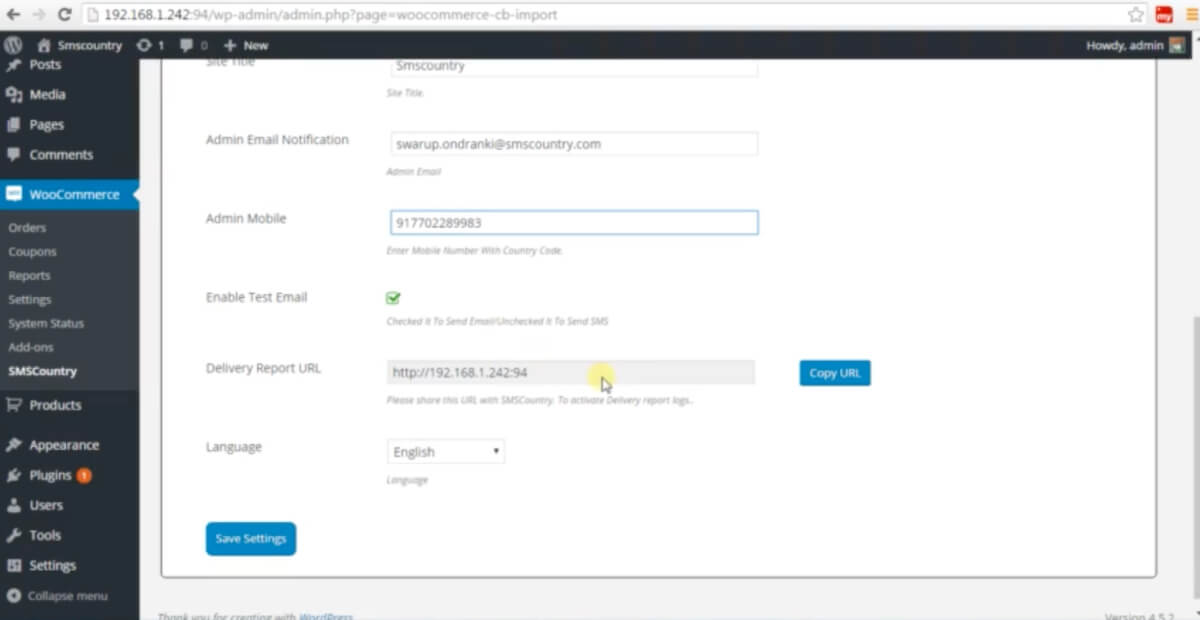
It includes configuring templates and adjusting your API settings. Such as delivery URL, admin email, and other general settings. You can also check your SMS history, analytics, and campaign performance.
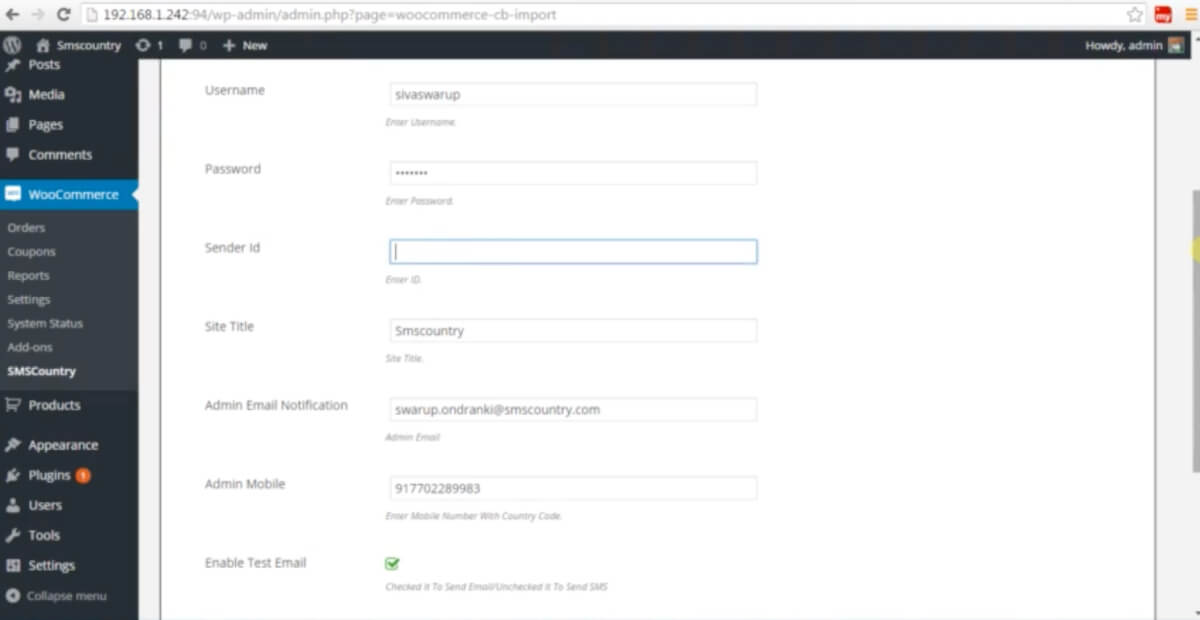
On this webpage, you can also check your campaigns’ SMS history, analytics, and performance.
That’s not all. There’s more you can do with the WooCommerce SMSCountry plugin. So, here’s something that can help you understand the power of this bulk SMS plugin. This also includes an instructional video with all the information you’d require.
Also Check: How to Integrate SMSCountry WooCommerce SMS Plugin in WordPress: A Step-By-Step Guide
How does the SMSCountry Prestashop SMS plugin work?
SMSCountry’s Prestashop plugin triggers automatic SMS alerts for orders, registrations, and stock updates, and installs directly through the Prestashop module marketplace.

The Prestashop SMS Plugin by SMSCountry helps take your website to the next level. With this plugin, you can add SMS functionality to your website.
Above that, you can add trigger alerts for customers too. For example, when they place an order, register, update order status, or cancel or return an order. You can also send alerts to vendors about order and stock inquiries.
Features of the Prestashop SMS plugin include:
- Sending SMS alerts to both DND and NON-DND numbers.
- Triggering language-based SMS based on the customer’s location and preference.
- Registering message templates for free.
- Allocating the sender name and sender ID as per customer intervention.
- Accessing detailed analytics and delivery status in your account dashboard.
With the Prestashop SMS plugin, you can increase your brand’s trust and ensure an enhanced customer experience. All this and more is achievable with the help of an integrable SMSCountry plugin.
To get started with the Prestashop SMS plugin, follow these steps:
Step 1: Log in to the admin panel of your Prestashop-powered website.
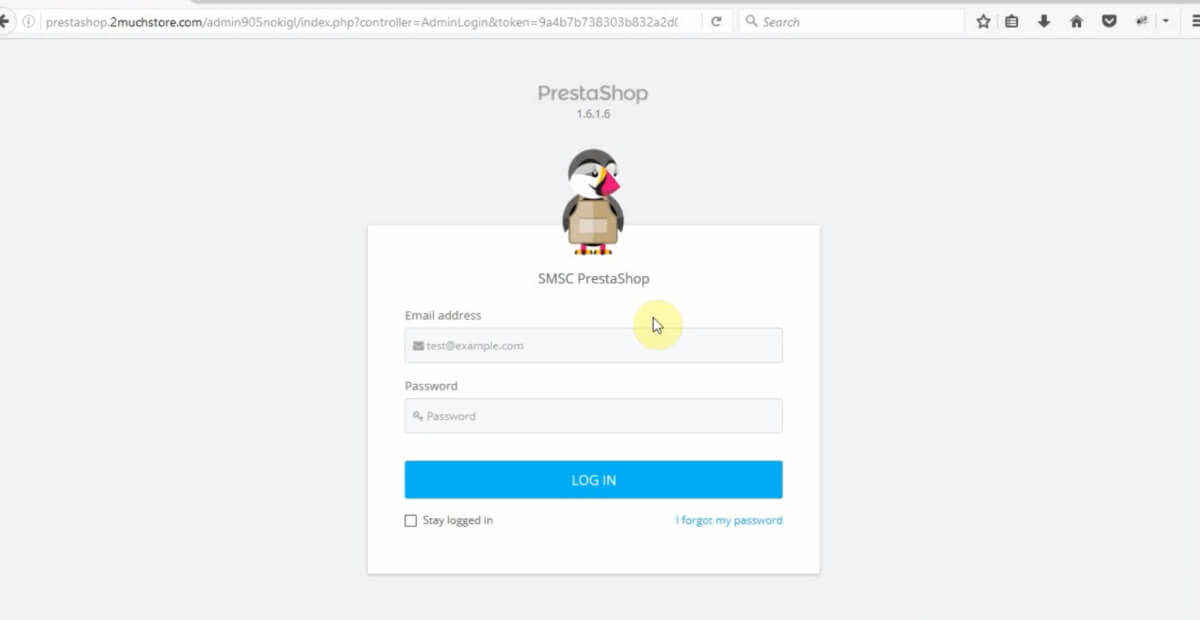
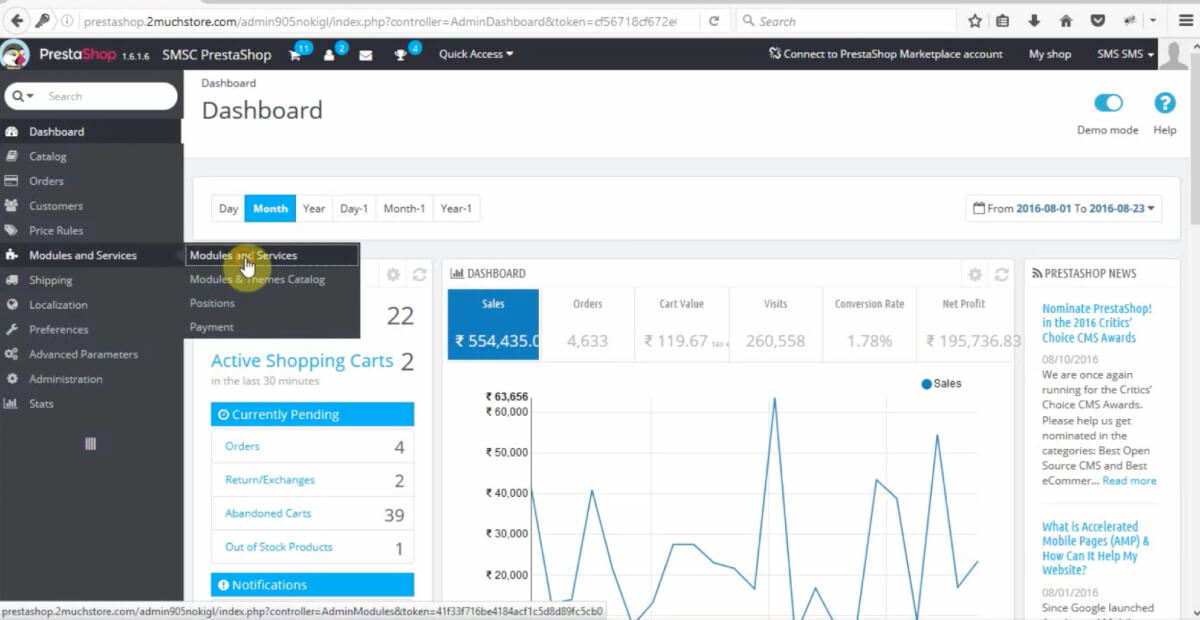
Step 2: You’ll be redirected to your website’s dashboard.

Step 3: Click the Module and Services option on the left-hand side. And then click the module and services option again.
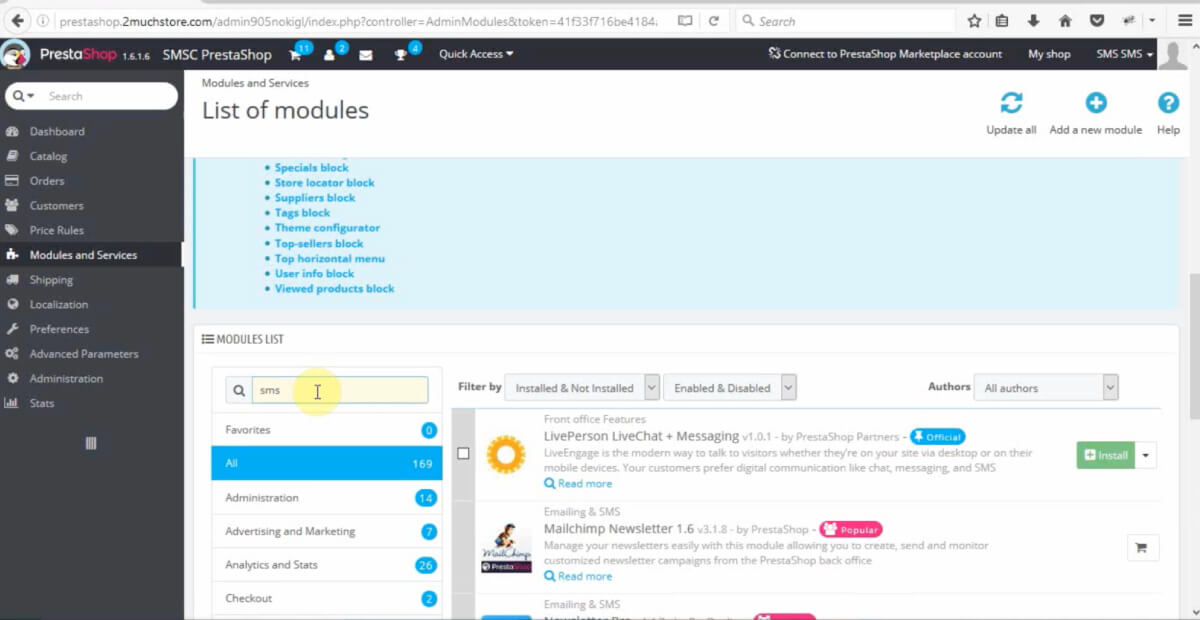
Step 4: You’ll be redirected to the list of modules webpage. This will show you all the modules installed on your website.
Step 5: Here, you have two options. You can click “add a new module” in the upper-right-hand corner, choose a file, and upload it. Or, if you still need to get the file, scroll down to the bottom of the page.
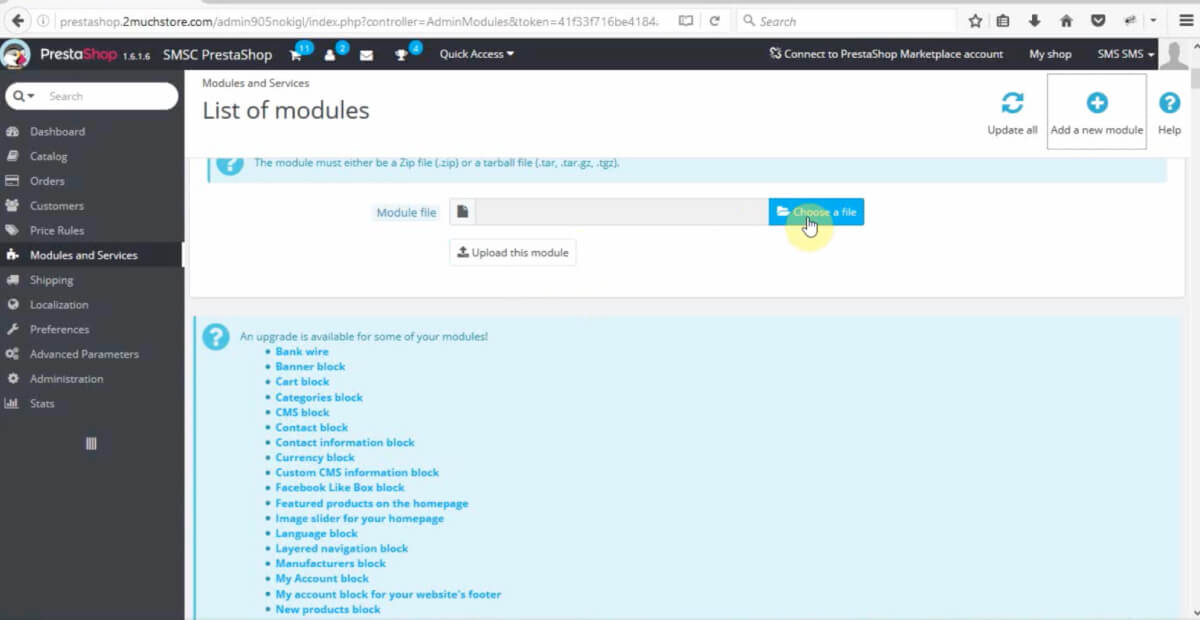
Step 6: At the bottom of the page, you’ll find the module list. Type “SMS” in the search bar, and scroll down to the last option in the results.
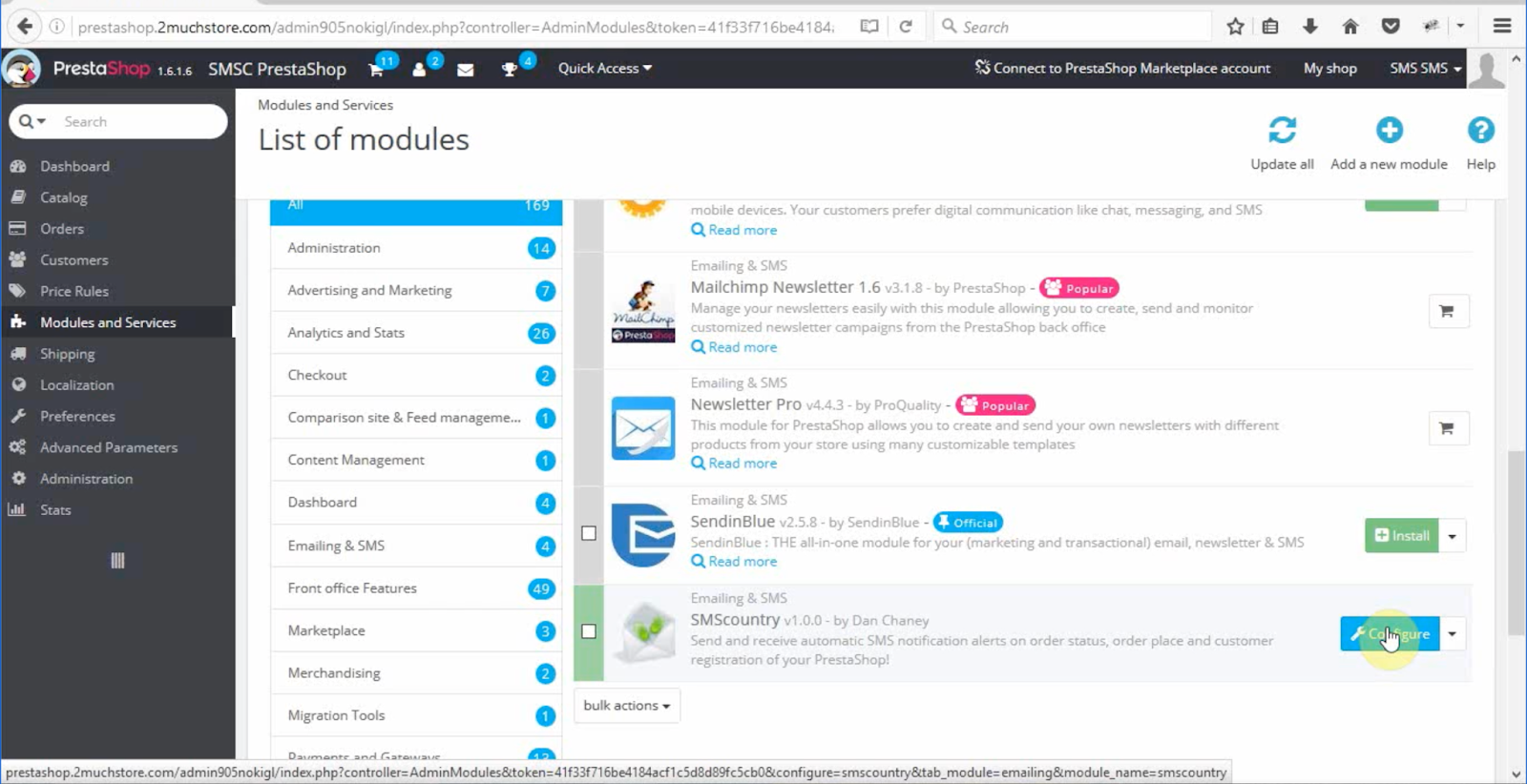
Step 7: Find SMSCountry listed, and click “Install” once you’ve installed the plugin.
Step 8: Click “configure” once the install button is configured.
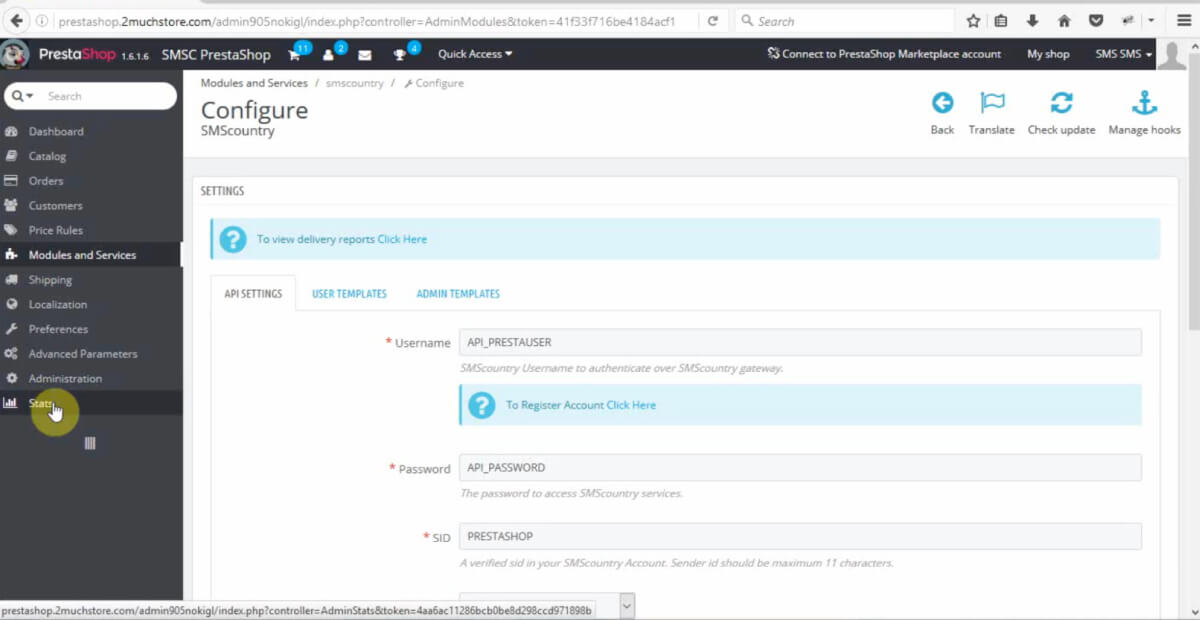
Step 9: This will take you to the Configure SMSCountry page. This is where you can change your plugin and configure your SMS settings.
Use the Prestashop SMSCountry plugin to control and add templates and trigger SMS. You can also calibrate your API settings and check your delivery reports.
What can the SMSCountry X-cart SMS plugin do?
The SMSCountry X-cart plugin sends real-time SMS notifications for orders and delivery status to customers on X-cart stores across 111+ countries.

You can add SMS functions to your website with the SMSCountry plugin for X-cart.
The SMSCountry plugin for X-cart can improve customer communication and support through timely SMS notifications. It helps build brand trust and ensures customer and vendor convenience.
Here are features of the X-cart SMS plugin that are promising and effective:
- You can send SMS alerts to both DND and NON-DND numbers.
- You can trigger language-based SMS depending on your customer’s location and preference.
- You can register your message templates for free.
- You can divide the sender name and sender ID as per customer intervention.
- You can access detailed analytics and delivery status in your account dashboard.
Want to get the powerful SMSCountry X-cart SMS plugin? All you need are the steps below to integrate your X-cart e-commerce website.
Step 1: Sign up as a new customer or log in. If you are an existing customer on SMSCountry.com.
Step 2: Once you sign up, you will need to contact your engagement manager at SMSCountry. You will have to ask for the particular plugin. In this case, X-cart by SMSCountry.
Step 3: SMSCountry provides you with an installation file and the required documentation. You get the ease of doing it yourself. If you can’t, we can help you in the process.
Step 4: Once that’s done, you must go to your X-cart-powered website.
Step 5: You’ll need to log into the admin panel on your website.
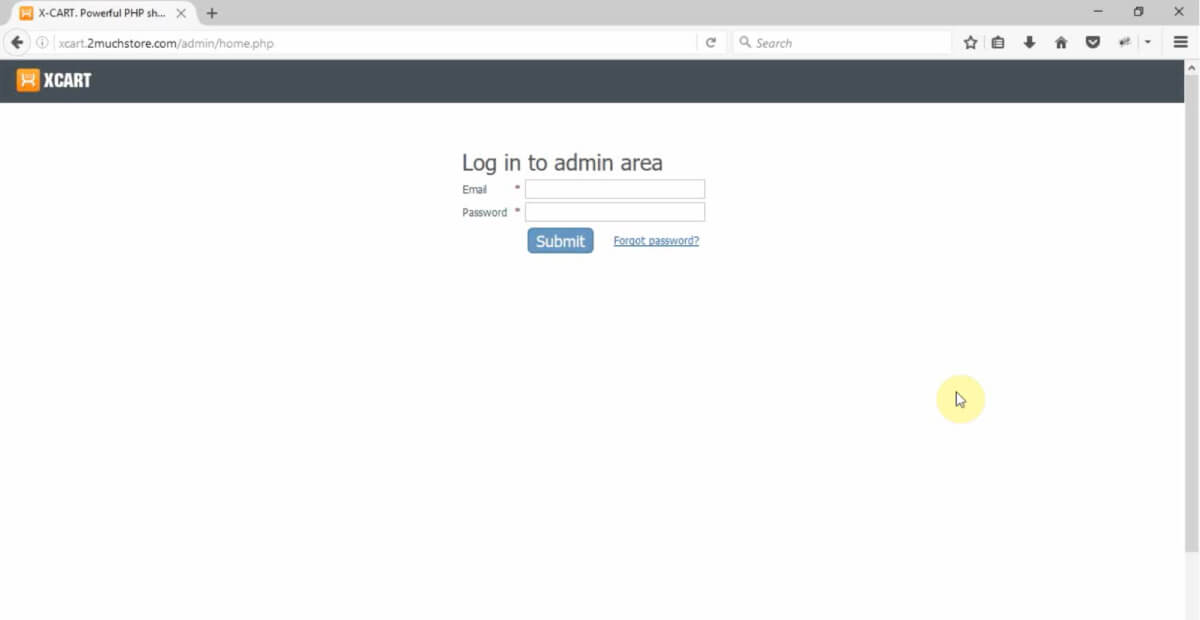
Step 6 You’ll then get redirected to your website’s dashboard. Here you need to click on Content and then on the SMSCountry setting.
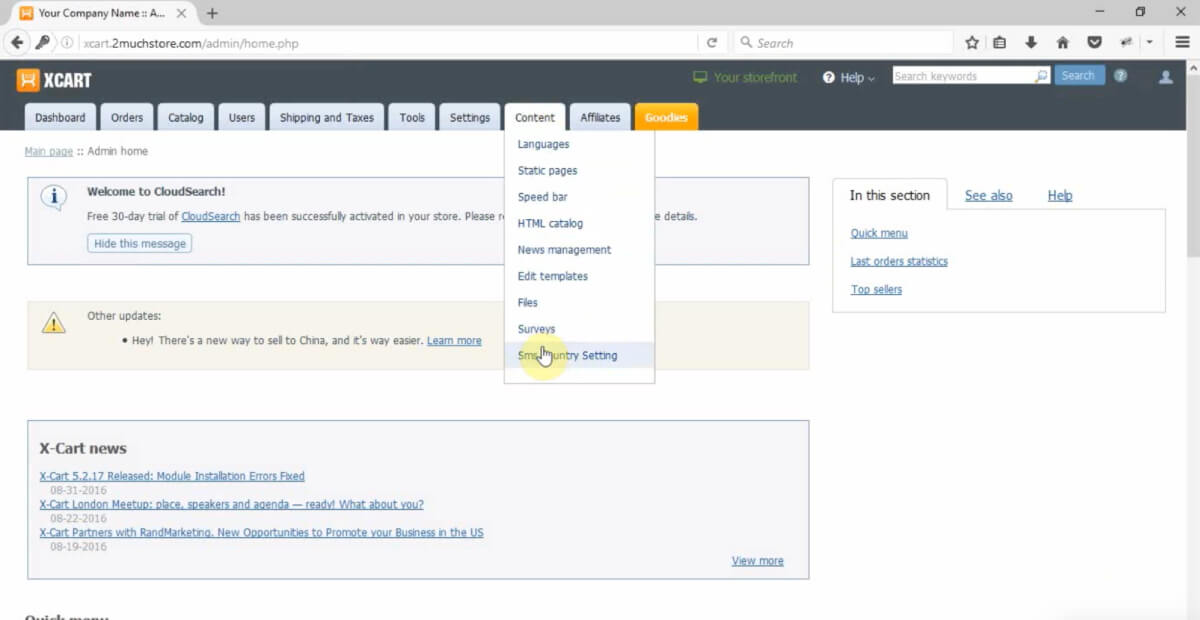
Step 7: Next, you’ll arrive at the SMSCountry page. It has all the necessary features.
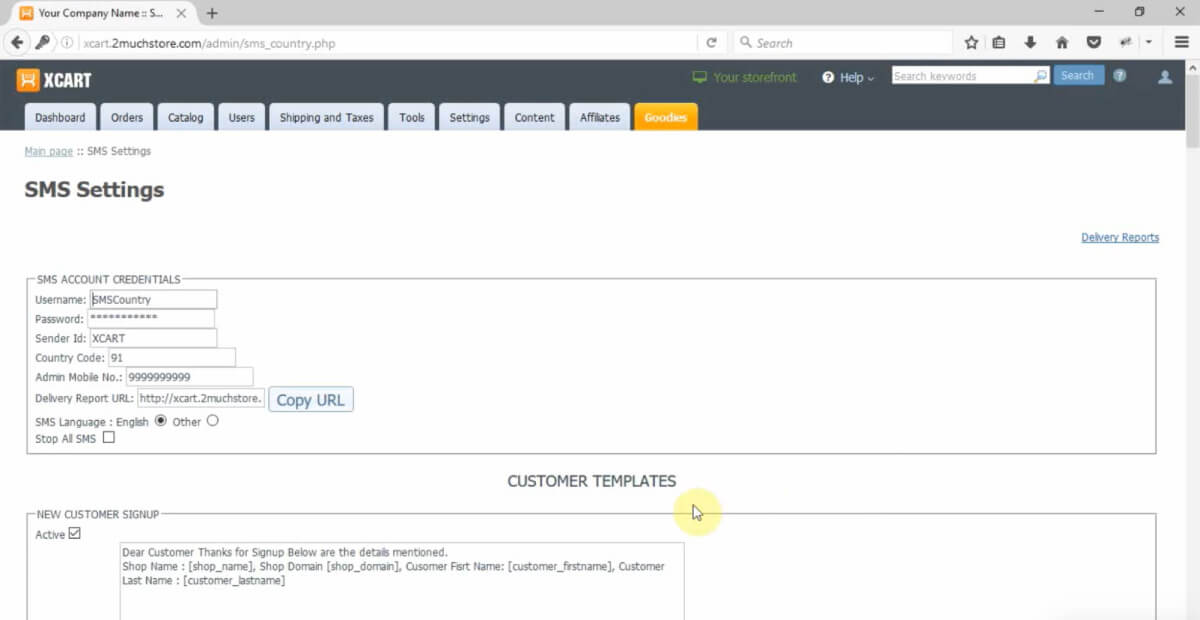
Using the SMSCountry X-cart plugin, you can access real-time delivery reports and send test SMSes. You’ll also be able to upload and edit your SMS templates.
Also, if you want to learn how to use specific settings, you can check out our comprehensive video on setting up the X-cart SMS plugin.
What does the SMSCountry nopCommerce SMS plugin offer?
SMSCountry’s nopCommerce plugin lets store owners send, edit, and track SMS templates and delivery reports directly from the nopCommerce admin panel.

To add SMS functionality to your nopCommerce website, You’d need to install the SMSCountry plugin.
The nopCommerce SMS plugin helps build brand trust and ensures customer and vendor convenience.
The nopCommerce SMS plugin features include the following:
- You can send SMS alerts to DND and NON-DND numbers.
- You can trigger language-based SMS depending on your customer’s location and preference.
- You can register your message templates for free.
- You can divide the sender name and sender ID as per customer intervention.
- You can access detailed analytics and delivery status in your account dashboard.
Now you’re probably wondering how to start with the nopCommerce SMS Plugin. Here are the steps to follow.
Step 1: Sign up as a new customer or log in. If you are an existing customer on SMSCountry.com,
Step 2: Once you sign up, you will need to get in touch with your engagement manager at SMSCountry. You will have to ask for the particular plugin. In this case, X-cart by SMSCountry.
Step 3: SMSCountry provides you with the installation file and the required documentation. This way, you can do it yourself. In any case, if you can’t, we can help assist you in the process.
Step 4: Once that’s done, you must go to your nopCommerce-powered website.
Step 5: On your website, you’ll need to log into the admin panel on your website.
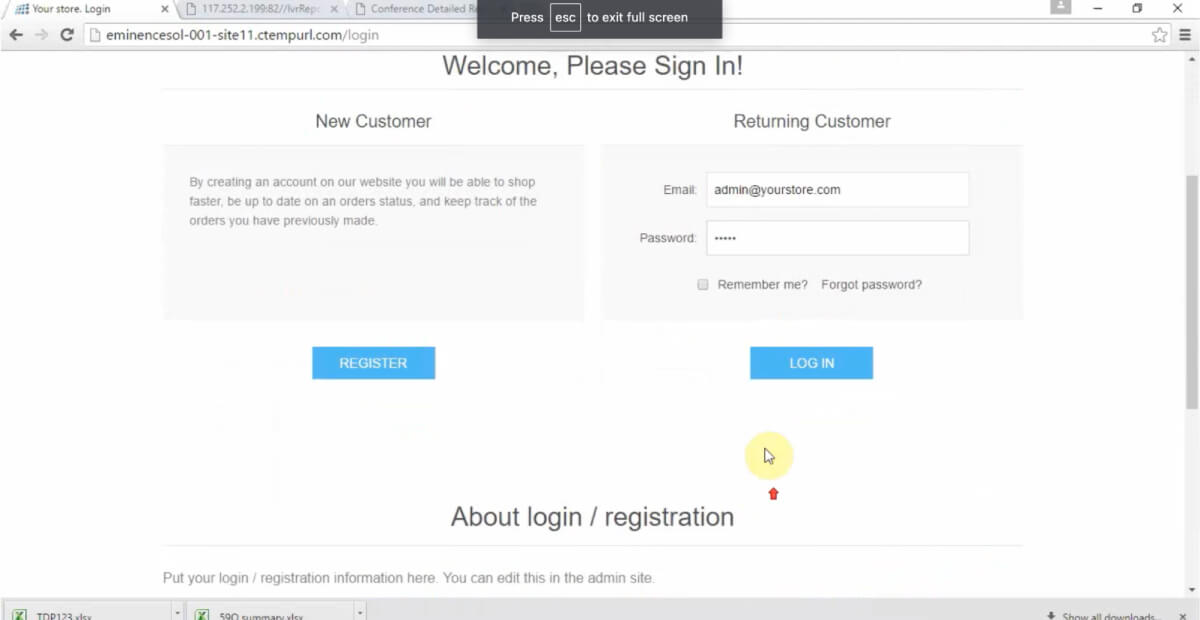
Step 6: On the right-hand side corner, you’ll find the option ‘plugin’, under which SMS is listed. Click on the option.
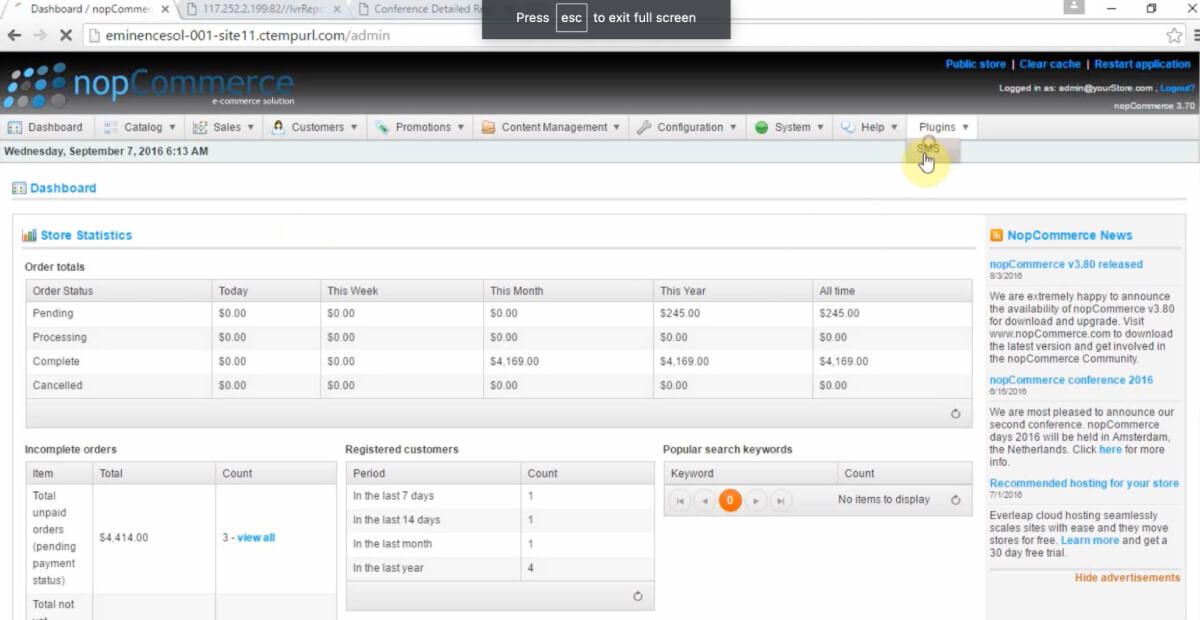
Step 7: You’ll redirect to the SMSCountry plugin page. Here you can make changes according to your needs.
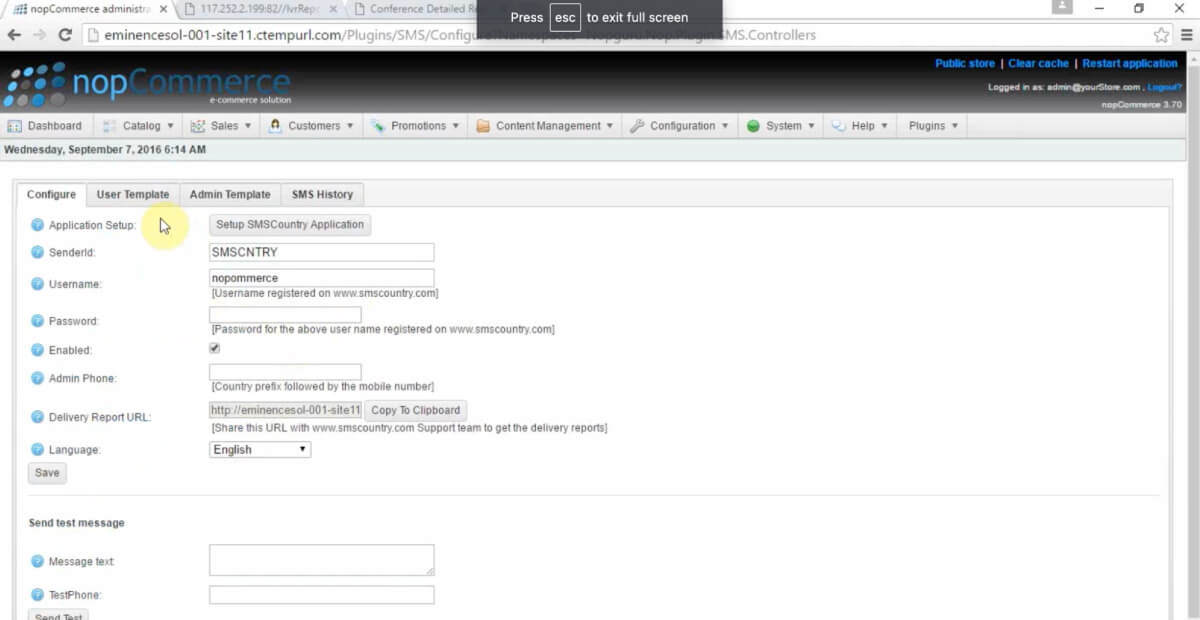
The nopCommerce plugin allows for enhanced functionality. With it, you can add/remove templates, check on your delivery reports and even edit your sender ID.
Want to learn more about the full functionality of the nopCommerce SMSCountry plugin?
We suggest you check this video out. You’ll understand the process right away.
Are you ready to level up your website?
Websites and especially e-commerce websites need the power of SMS. Your SMSCountry plugin will define the way you deliver your customer experience.
SMSCountry offers personalised messaging, rich-media messaging, APIs, and much more.
Do you know why? All to help you enhance your customer service and sales.
With SMSCountry, you get the best in SMS marketing.
Don’t wait because each second counts. Plugin to the future with SMSCountry’s premium plugins.
Frequently Asked Questions About SMSCountry SMS Plugins
Yes. SMSCountry’s Excel to SMS plugin is completely free to use and requires no login – you send bulk or personalised SMS directly from your Excel or Google Sheets data.
Sign up or log in at SMSCountry.com, request the WooCommerce plugin from your engagement manager, then install and configure it from the WooCommerce menu in your WordPress admin dashboard.
Yes. All six SMSCountry plugins – Excel, Magento, WooCommerce, Prestashop, X-cart, and nopCommerce – support sending SMS alerts to both DND and non-DND registered numbers.
Yes. Each plugin can trigger language-based SMS depending on the customer’s location and language preference, so messages are automatically sent in the recipient’s preferred language.
SMSCountry offers dedicated SMS plugins for Magento, WooCommerce, Prestashop, X-cart, and nopCommerce, plus a free plugin for sending SMS directly from Microsoft Excel or Google Sheets.
The Excel to SMS plugin is free; pricing for the Magento, WooCommerce, Prestashop, X-cart, and nopCommerce plugins is provided by an SMSCountry engagement manager after signup, based on SMS volume.


